

When connecting smart devices to Google Home, checking compatibility and the device’s connection type is more useful than immediately looking for a pairing button. These checks can help you choose the right setup route and avoid a pairing process that cannot work for your device.
If you’re unsure whether a device will work, or whether to use Matter, Wi-Fi or Zigbee, start with the exact model’s instructions. This guide explains what to check before you begin, how to follow the right setup path and what to try when a device won’t appear or respond.
You’ll learn how to check compatibility, prepare your phone and network, and work through common connection issues one step at a time. We’ll also cover why Australian-market safety information matters when choosing hardware. Asthome supplies smart-home products and components, including Matter, Zigbee and Wi-Fi options, and states that its products are SAA certified for the Australian market. Check the device details before purchase, then follow the setup steps for its connection type.
Key Takeaways
- Check Google Home compatibility for the exact device model and the features you want before you buy or begin setup.
- Choose the setup route specified for the device, and follow its manufacturer instructions.
- When connecting smart devices to google home, prepare the device, phone, required apps and network before opening the pairing flow.
- If a device won’t appear or respond, troubleshoot methodically and change one factor at a time before considering a reset.
- Compare Australian-market smart-home options and check product safety information. Asthome states that its products are SAA certified for the Australian market and offers product assistance.
What does connecting smart devices to Google Home actually involve?
The aim is to control compatible devices from the Google Home app, by voice, or both. A device can be added directly to your Google Home setup, or you may need to link the manufacturer’s supported service so Google Home can access it. The Google Home platform brings supported products and services together, but a device having Wi-Fi or another smart connection does not automatically make it compatible.
Keep three terms distinct: a device is the physical product, such as a light switch; a protocol is the communication standard it uses, such as Wi-Fi, Matter or Zigbee; and a hub is hardware that can connect certain devices to a network or smart-home platform. Whether you need a hub depends on the device and its stated requirements.
What can Google Home control?
Why Matter, Wi-Fi and Zigbee affect setup
The connection type helps determine the setup route, but does not tell the whole story. Matter is a connectivity standard for compatible smart-home products. Requirements still vary by model, including whether a compatible controller or other equipment is needed. Wi-Fi devices generally use the manufacturer’s app or instructions to join a network and link with Google Home. Zigbee devices commonly need a compatible hub or bridge. Check the exact model’s instructions before starting.
This distinction matters when comparing products. A Matter label, Wi-Fi connection or Zigbee radio alone does not confirm that a device supports the Google Home features you want. Check the manufacturer’s compatibility information for the exact model, including any hub or controller requirements. Asthome supplies Matter and Zigbee modules, Wi-Fi switches, hubs and sensors, and states that its products are SAA certified for the Australian market. Confirm Google Home compatibility separately, and contact Asthome’s customer service team for product assistance if you need help checking product details.
Before connecting smart devices to Google Home, check these requirements
A few checks before pairing can save time and help you choose the right setup route. Confirm the exact model, which apps and accounts it requires, and whether it needs a hub or other equipment. Requirements can differ between manufacturers and between models in the same product range, so don’t rely on instructions for a similar-looking device.
Check compatibility, account and network first
Look for explicit Google Home support in the manufacturer’s current instructions or compatibility list. Check that the device supports the functions you want, not just a basic connection. Before connecting smart devices to Google Home, make sure you can access the required manufacturer app and account, as well as the Google Home app and the account you’ll use to manage your home. Keep the product instructions handy, especially the steps for entering pairing mode.
- Exact model: Match the model number and confirm Google Home support and the features available through the integration.
- Apps and accounts: Check which manufacturer app and sign-in details setup requires. Make sure the device is associated with the account you plan to link.
- Network: Review the device’s Wi-Fi or other network requirements. Check that your phone and any required hub are ready, and that the network is available where the device will be used.
- Instructions: Keep the manufacturer’s setup steps nearby, including how to put the device into pairing mode.
Don’t rely on the product category or protocol label alone. The exact model’s requirements are the details to check before you start.
Know whether a hub or electrical work is involved
Check whether the device connects directly or needs a compatible hub or bridge. For a Matter product, confirm which controller the model requires and whether it has Thread requirements. Matter products can have different setup paths, so check the instructions for the specific device. If you’re assessing Matter hardware, you can review Asthome’s Matter smart switch options and confirm the exact model’s Google Home compatibility before purchase.
Some smart products are plug-in or battery-powered; others are fixed electrical equipment. Don’t open or wire a fixed device yourself. Refer installation to a qualified professional, and complete app pairing only as directed by the manufacturer after the device has been safely installed and is ready.
Check Australian-market information as well as connectivity when choosing a product. Asthome states that its products are SAA certified for the Australian market and offers product assistance. Contact the team about the specific model if you need help checking its details or setup requirements.
How to connect a smart device to Google Home step by step
Once you’ve confirmed the device’s compatibility and requirements, use the route specified by its manufacturer. Menu names and prompts can vary between app versions, devices and brands, so treat this as a general workflow rather than a list of exact button labels.
- Read the manufacturer’s setup instructions. Identify whether the product connects directly, uses Matter, or needs its own service or hub. Enter pairing mode only when instructed.
- Prepare the device and network. Power it on as directed, check that your phone is connected as required, and have any necessary app, account or hub ready.
- Open Google Home and start adding a device. Follow the current in-app prompts. Choose direct setup only if the product supports it.
- Complete the route for your device type. Follow the relevant steps below and wait for the app to confirm setup.
- Check the result. Find the device in Google Home and test the controls shown there. If it does not appear or a feature is missing, check the manufacturer’s instructions and compatibility information.
Add a device directly or pair a Matter device
For a product that supports direct setup, choose the corresponding add-device flow in Google Home and follow the prompts. For a Matter device, follow the manufacturer’s commissioning instructions. You may be asked to scan a setup code or enter it manually. Steps depend on the model, so check whether it requires a compatible Matter controller or has Thread requirements before proceeding. A Matter label does not mean every product pairs in the same way.
Link a manufacturer service or compatible hub
Some devices are added by linking the manufacturer’s supported service rather than pairing the product directly. In Google Home, choose the option for a supported service or manufacturer, select the correct one and sign in when prompted. Complete any authorisation or room assignment steps shown in the app.
For a Zigbee product, set up its compatible hub or bridge first, following that manufacturer’s instructions. Then link the hub’s supported service to Google Home. The device may appear through the hub integration rather than as a separate direct connection. Refresh or sync devices only if the manufacturer’s app or instructions recommend it.
Use direct setup for a supported device, Matter commissioning for a compatible Matter product, or service linking for a supported manufacturer integration or hub. For example, a Zigbee sensor may rely on its hub, while a Wi-Fi switch may use its own app before its service is linked. Connecting smart devices to Google Home is more straightforward when you follow the route confirmed for the exact model instead of choosing an option based on its connection type alone.
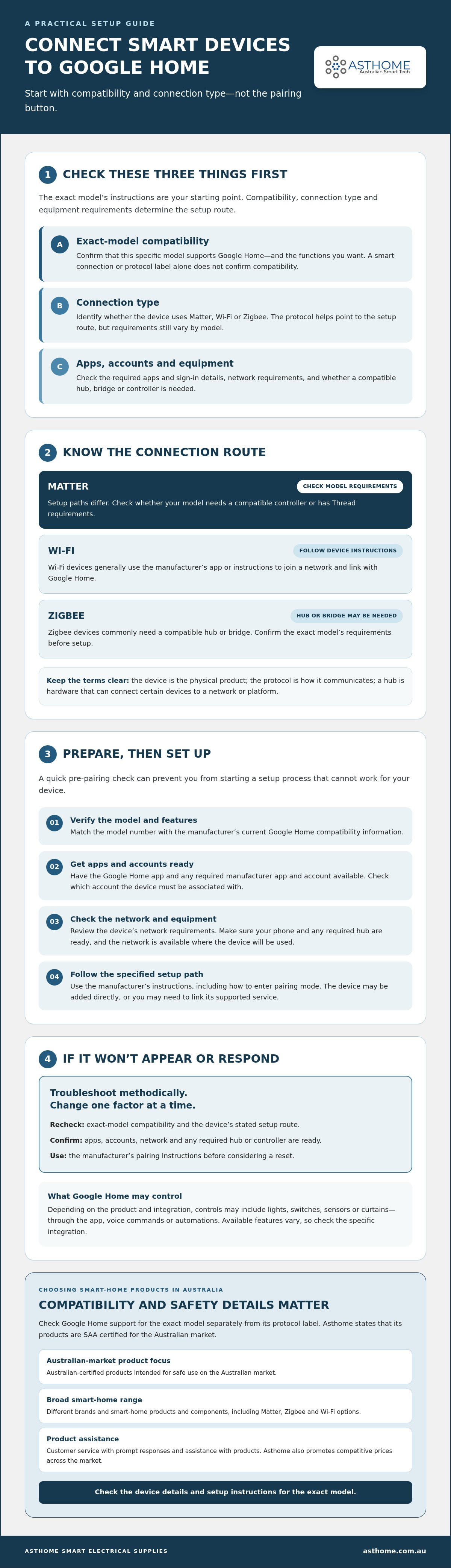
Smart device not connecting to Google Home? Work through these checks
A failed connection does not automatically mean the device is faulty. The issue could be the network, an incomplete account link, the wrong pairing route or a hub that is not ready. Troubleshoot in order and change one factor at a time so you can tell whether a change helped.
Confirm compatibility and the correct setup method before resetting a device. A reset can clear its existing configuration, so use one only when the manufacturer’s instructions recommend it.
Fix pairing, Wi-Fi and account-linking problems
Start with the basics, then follow the checks that match the symptom:
- The device won’t enter pairing or appear: Confirm it’s powered on and in pairing mode as described by the manufacturer. Recheck Google Home support for the exact model and confirm you selected the right setup route.
- Wi-Fi setup fails: Check that the device is within range and that the network meets its requirements. If you’re on a guest network, try the network specified in the device instructions instead. Follow the product guidance for supported Wi-Fi bands.
- A manufacturer service won’t link: Check that you selected the correct service and signed in to the manufacturer account that contains the device. If the service link appears incomplete, review the authorisation steps in both apps.
- The app can’t complete pairing: Check the manufacturer’s guidance for relevant phone permissions, app updates or Bluetooth and Location settings. Requirements vary by product and setup method.
After each check, try the connection again before changing anything else. If basic checks don’t help, restart the device, phone and router if the manufacturer recommends it. Use the maker’s current reset and re-pairing steps only as a later measure. Don’t guess which button to hold or how long to hold it.
When a device or hub still doesn’t appear
For a hub-based product, first check that the hub is powered, online and working in its own app. Confirm that the device has been added to the hub’s ecosystem before checking its Google Home integration. If the hub’s service is linked but the device is missing, follow the maker’s instructions before refreshing or syncing.
For Matter commissioning, check the setup code and product-specific requirements, then repeat commissioning only as directed by the manufacturer. Don’t assume that another attempt requires a factory reset.
If you need more help, contact the device maker or retailer with the exact model, the setup route you used and the steps you’ve already tried. For assistance with Asthome product details, contact Asthome’s customer service team. Keep the manufacturer’s instructions nearby so you can describe the issue clearly.
Keep Google Home reliable and choose compatible Australian smart devices
A connected setup needs occasional checks, especially after you change your network, accounts or smart-home hardware. Keep device and hub instructions handy, then use them to find out whether a change calls for reconnecting a service, updating software or adjusting a setting. If a device stops responding, check its status in Google Home and the manufacturer’s app before changing multiple settings.
Maintain a dependable connected-home setup
Build a simple routine around the manufacturer’s guidance:
- Check that devices and any required hubs are online in their relevant apps.
- Review linked services if you change an account, Wi-Fi network or hub.
- Check for device or app updates, and install them as the manufacturer recommends.
- Test the controls and automations you rely on after making changes.
If you’re planning automated lighting, Asthome offers smart light switches and related products to compare. Check each model’s Google Home support and intended functions separately before buying.
Choose devices with clear compatibility and support
Compare the exact model’s protocol, hub or controller requirements, Google Home support and the features you need. This is particularly useful for Matter and hub-based products, where setup requirements can vary. For Zigbee options, Asthome offers Zigbee 3.0 smart switch modules. Confirm compatibility and hub requirements for the specific model before choosing one.
Australian-market information matters too. Asthome states that its products are SAA certified for the Australian market and offers product assistance. Certification and connectivity are separate checks: confirm the product’s Australian-market information, then verify Google Home compatibility and setup requirements for the exact model. Asthome offers smart-home products and components from different brands, so compare the product details rather than relying on a protocol label alone.
A reliable routine makes connecting smart devices to google home easier to manage over time: check device status, review integrations after changes and follow manufacturer update guidance. If you’re considering a switch, module, hub or sensor, explore Asthome’s range and contact its team for product guidance on the model you’re assessing.
Make your next Google Home connection a confident one
Reliable setup starts before you tap “add device”. Confirm Google Home support for the exact model and the features you need, then choose the setup route that matches its requirements, whether that’s direct pairing, Matter commissioning or a supported service through a hub. If a device won’t connect, check the network, account and setup method before attempting a reset.
When choosing hardware, check its Australian-market information as well as compatibility. Its range covers smart-home products and components from different brands. Licensed electrical professionals can apply for trade accounts with discounted pricing.
Explore Asthome’s smart-home products and contact the team for product guidance on the model and requirements you’re considering. Check compatibility for the exact device before purchase, then follow its manufacturer’s setup instructions.
Frequently Asked Questions
How do I connect a smart device to Google Home?
Check the exact model’s Google Home compatibility and manufacturer instructions first. Depending on the product, you’ll add it directly in the Google Home app, commission it as a Matter device, or link its supported manufacturer service. A Zigbee product may need a compatible hub set up first. Have the required app, account and network ready, then follow the prompts for your device. Menu names and steps can vary.
Why is my smart device not showing up in Google Home?
A device may be missing because it isn’t compatible, hasn’t entered pairing mode, or hasn’t been added to its manufacturer app or hub. Check that it’s powered, confirm you’re using the right setup route, and review the account and network requirements. If you linked a service, make sure you signed in to the account that contains the device. Follow manufacturer guidance before refreshing, resetting or pairing again.
Can I connect Zigbee devices directly to Google Home?
Usually, a Zigbee device needs a compatible hub or bridge rather than connecting directly to Google Home. Set up the device in the hub’s own ecosystem first, then link the hub’s supported service in Google Home. Requirements depend on the device and hub, so confirm that the exact models work together and that the integration supports the controls you need. A Zigbee label alone doesn’t confirm Google Home support.
Do Matter devices need a hub to work with Google Home?
Not every Matter device uses the same setup, and some may require a compatible controller. Requirements can also depend on whether the product uses Thread and on the equipment needed to support its connection. Check the manufacturer’s instructions for the exact model before purchase or pairing. Don’t assume a Matter label means no additional equipment is required, or that every Matter product offers the same Google Home features.
Can I connect Wi-Fi smart devices to Google Home?
Yes, if the exact Wi-Fi device supports Google Home. Some products have a direct setup option; others need to be added to the manufacturer’s app first, then connected by linking its supported service in Google Home. Follow the product’s network instructions and check which features are available through the integration. A Wi-Fi connection by itself doesn’t guarantee compatibility, so confirm support for the model you’re considering.
Do I need the Google Home app to connect smart devices?
The Google Home app is generally needed to add devices directly or link a manufacturer service to your Google Home setup. Some products also require their own app for initial setup, account creation or software updates. Follow the device maker’s instructions, as the order can vary. If a product uses a hub, you may need to set it up in the hub’s app before linking its supported service in Google Home.
Is it safe to install a smart switch module myself?
Don’t open or wire fixed electrical equipment yourself. A smart switch module may connect to household wiring, so check the manufacturer’s instructions and refer installation to a qualified professional. Keep product selection separate from installation: confirm the exact model’s compatibility and Australian-market safety information before buying. Asthome states that its products are SAA certified for the Australian market, but that doesn’t establish Google Home compatibility for every product.