

What if the switch isn’t the part that’s failed? When a smart switch stops responding, it’s easy to suspect the device, but the cause may sit elsewhere in the control path. If you’re wondering what to do when a smart switch is unresponsive, start with safe checks before resetting settings, replacing hardware or investigating anything electrical.
It’s frustrating when an app or voice command won’t turn on the lights, especially when you’re unsure whether the switch, hub, home network or app is to blame. You can work through those possibilities without opening a switch plate or handling wiring.
This guide takes you through a practical sequence: compare the available controls, check the app and network, review any hub or device connection, then decide what to try next. You’ll also learn which warning signs mean you should stop troubleshooting and arrange help from a licensed electrician.
If a replacement is eventually needed, Asthome supplies smart switches and modules, with all products SAA certified for the Australian market. First, narrow down the fault. A new switch won’t necessarily resolve an app, network or power issue.
Key Takeaways
- “Unresponsive” describes what the controls are doing, not necessarily a failed switch. Note whether the issue affects one control or several.
- For what to do when a smart switch is unresponsive, check the app, home internet and any required hub in sequence before changing device settings.
- Compare the symptoms, such as app-only failure or several offline devices, to help narrow down where the fault may be.
- Use only software reconnection or reset steps supported by the product instructions. Leave electrical isolation and wiring work to a licensed electrician.
- Keep setup details and instructions handy, and note recurring patterns or warning signs that point beyond a connection issue.
Smart switch unresponsive? Identify what has stopped responding
An unresponsive smart switch can have several possible causes, and the switch itself isn’t automatically faulty. “Unresponsive” simply means one or more controls aren’t producing the expected result. The wall button might still operate the light while the app fails, or the app may work while an automation doesn’t. Treat these differences as clues, not a diagnosis.
Keep your checks external. Don’t remove the switch plate, touch wiring or work on electrical fittings. Compare the available controls and note what happens without opening or altering the switch. Smart switches can use different control paths, including local buttons, apps and hubs, as outlined in Understanding Wireless Smart Switches.
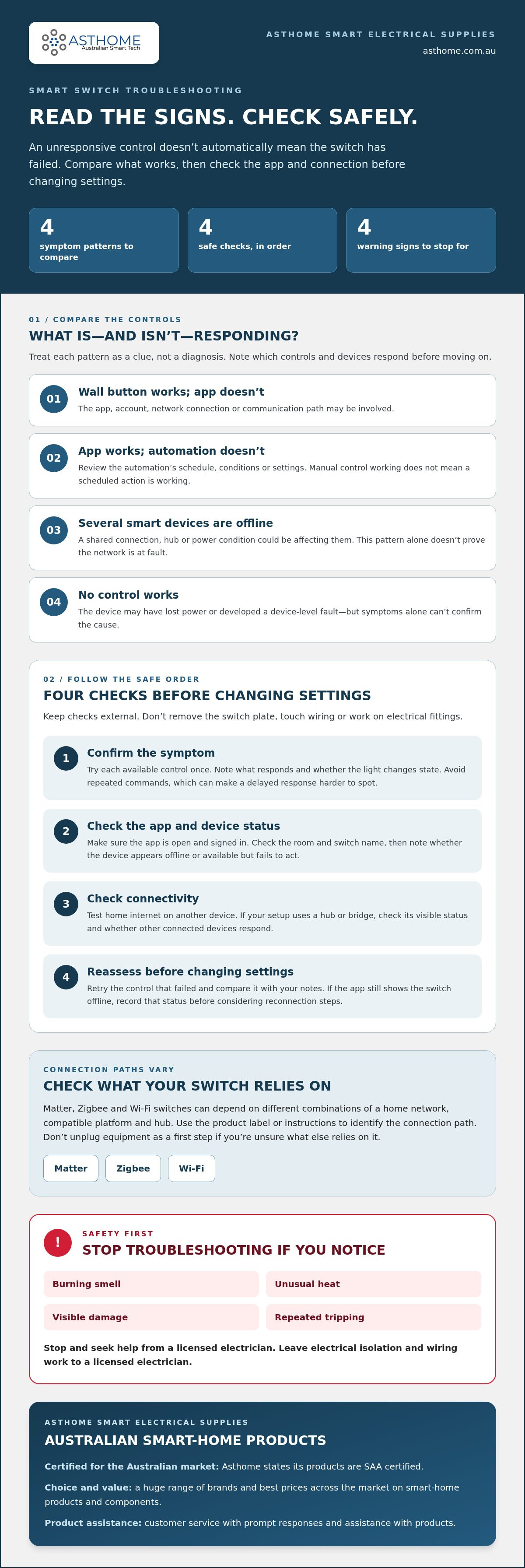
Use this symptom guide as an initial indication of where to investigate next:
- The wall button works, but the app doesn’t: the app, account, network connection or communication path may be involved.
- The app works, but an automation doesn’t: the automation’s schedule, conditions or settings may need attention.
- Several smart devices are offline: a shared connection, hub or power condition could be affecting them.
- No control works: the device may have lost power or developed a device-level fault, but symptoms alone can’t confirm the cause.
Does the wall switch respond when the app does not?
If both controls are available, try the wall button and app separately, then observe whether the light changes state. A working wall button with an app that can’t reach the switch points to a different control path than a button and app that both fail. This comparison helps narrow the next check, but a responsive button doesn’t prove that the app connection, hub or smart functions are all operating normally.
Consider automations separately. If manual control works but a scheduled action doesn’t, note the automation’s intended time and result. Don’t assume the switch has failed simply because one automated command was missed.
Is one switch affected or are several smart devices offline?
Check whether nearby lights or other connected devices respond through their usual controls. If one switch is affected while other smart devices work, the issue may be limited to that device or its individual connection. If several devices stopped responding around the same time, a shared network, hub or power condition may be involved.
That pattern is only a clue. Devices can rely on different connections or control routes, so several failures don’t prove the home network is at fault. Write down which devices and controls respond before moving on. This gives you a clearer starting point for what to do when a smart switch is unresponsive, without risking electrical work or replacing a device prematurely.
Check power, Wi-Fi, hub and app in a safe order
Once you’ve noted which controls are affected, follow these checks in sequence. They focus on the app and visible device status, your home network and any required hub. Don’t remove fittings or touch wiring. If you notice a burning smell, unusual heat, visible damage or repeated tripping, stop troubleshooting and seek help from a licensed electrician.
- Confirm the symptom. Try the available controls once and note what responds, what doesn’t and whether the light changes state. Avoid repeated commands, which can make it harder to tell whether a delayed response has occurred.
- Check the app and device status. Make sure the app is open and signed in. Confirm you’ve selected the correct room and switch name, then check whether the device is marked offline or appears available but fails to act on a command.
- Check connectivity. See whether your home internet is working on another device. If the switch uses a hub or bridge, check its visible status and whether other devices connected through it are responding.
- Reassess before changing settings. Retry the control that failed and compare the result with your notes. If the app still shows the switch offline, record that status before considering reconnection steps.
Check the app, device status and smart-home platform
Start with the intended switch, not a reset. Similar room or device names can lead you to select the wrong control. Check whether the app displays the switch’s current status, and note whether other controls in the same smart-home platform work. An offline label suggests a different issue from a switch that appears online but ignores a command.
Hold off on a factory reset. Depending on the product and platform, you may need to repeat setup afterwards. First establish whether the issue affects one command, the switch’s app status or the wider platform. If the app has signed you out, sign in again before changing the device configuration.
Check the network path without changing electrical fittings
Check the router’s normal status indicators and test internet access on another device. If your setup requires a hub or bridge, look at its app or status display. Don’t unplug equipment as a first step if you’re unsure what else relies on it. Matter, Zigbee and Wi-Fi switches can depend on different combinations of a home network, compatible platform and hub. The product label or instructions can help identify which connection path applies. For protocol context, the Matter smart switch guide explains how that setup fits into a smart home.
If the router and hub appear normal but only one switch remains offline, note the app status and any recent changes. Avoid altering router settings or deleting the device from the platform as a first response, since either change may affect setup. A clear record of what the app shows can help you choose the next check without disturbing the electrical fitting.
Compare the symptoms to narrow down the likely fault
Once you’ve recorded which controls work, compare the pattern rather than jumping straight to a cause. The table below helps organise your observations and choose a safe next check. Each possible fault layer is only a clue. A symptom table can’t diagnose wiring or an internal device fault.
| Symptom | Possible fault layer | Safe next check |
|---|---|---|
| The wall control works, but the app doesn’t | App, device selection, platform connection or required hub | Check that you’ve selected the correct switch and room. Close and reopen the app, then check its device status and the router or hub connection. |
| One smart switch appears offline | That device’s connection, app status or power supply | Check whether other devices are online and note the switch’s status in the app. Don’t open the fitting to investigate. |
| Several smart devices are offline | A shared connection, platform, hub or power condition may be involved | Check whether the home internet and any required hub appear to be operating normally. Note which devices are affected. |
| Neither the wall control nor the app responds | Power or device fault is possible | Check whether other lights or devices are affected. Stop if you notice damage, unusual heat, a burning smell or repeated tripping. |
When the app fails but the wall control still works
A working wall control with a failed app command makes the app or its connection a useful place to start. Confirm the device name and room, then close and reopen the app before changing the switch configuration. Check whether the app shows the switch as offline or simply fails to carry out a command. If the device appears offline, look at the platform, router and any required hub status. Don’t remove the fitting or try to reconnect wiring as an app fix.
Keep the result in context. A physical button that operates the light doesn’t confirm every smart feature is functioning. The switch may still be unavailable to the app or other connected controls.
When the wall control and app both fail
Check whether other lights or smart devices are affected, and note whether the issue began at the same time. A single unresponsive switch may have a device-specific issue; several failures could point to a shared condition. Neither pattern proves the cause. If the switch and app both fail, power or a device fault may need assessment beyond these external checks.
Stop and seek help from a licensed electrician if you see damage, notice unusual heat or a burning smell, or experience repeated tripping. Don’t remove the switch plate or handle wiring. For wider context on selecting and understanding switches for Australian homes, see this Australian smart light switch guide. Use your recorded symptoms to decide what to do when a smart switch is unresponsive, rather than treating the table as a diagnosis.
Reset or reconnect a smart switch without risking electrical safety
Keep software troubleshooting separate from electrical work. You can check app and hub settings from your phone, but don’t remove a faceplate, access wiring or operate switchboard equipment to reset or isolate a switch. Electrical reset procedures aren’t a DIY troubleshooting step. If a check involves the switch’s wiring or household electrical supply, stop and arrange assessment by a licensed electrician.
Try software-level recovery before resetting device settings
If an internet, platform or hub interruption has ended, check whether the switch has reappeared in the app before changing its setup. Follow the manufacturer’s instructions for any supported app refresh, software reconnection or device restart. Steps vary by product, so don’t assume a reset method for one switch applies to another.
A factory reset can erase settings and mean setting up the device again. Before using one, record the switch’s current name, room, app status and automation behaviour. That information makes it easier to restore its setup and compare results. Only follow a factory-reset procedure if the product instructions support it and you understand what will need to be configured afterwards.
- Refresh: Close and reopen the app, then check the device status again.
- Reconnect: Use the manufacturer’s software instructions for the app, platform or hub.
- Reset: Treat this as a later option, not a first response, and use only the exact product instructions.
These steps can help distinguish a temporary software or connection problem from symptoms that need a different assessment. They can’t establish whether a switch has an internal or electrical fault.
Know when troubleshooting needs a licensed electrician
Stop if the switch or surrounding area feels unusually hot, looks damaged, smells unusual or behaves erratically. Repeated circuit interruptions or losing normal lighting control are also reasons to stop DIY checks and seek professional assessment. Don’t remove the plate, touch wiring or attempt an electrical reset or isolation procedure yourself.
For Australian homes, leave electrical installation and wiring work to a licensed electrician. If there are warning signs, don’t keep testing the switch through different controls. Note what happened and which controls were affected, then share those observations with the electrician. If there are no warning signs and the issue appears limited to app or hub control, follow the manufacturer’s software instructions.
If you’re considering a different smart switch, compare its connection type and intended setup with your existing smart-home system before choosing. Asthome supplies smart switch modules and Wi-Fi light switches, and all products are SAA certified for the Australian market. Explore Asthome’s smart-home range as you compare product options. Remember that a replacement won’t necessarily resolve a network or wiring issue.
A safe answer to what to do when a smart switch is unresponsive starts with the least invasive software checks. Reset settings only when the product instructions support it, and leave electrical work to a licensed professional.
Prevent repeat smart switch outages and choose a safe next step
A short setup record can make the next outage easier to understand. Keep the product instructions somewhere accessible, along with the switch’s app name, device name, room and any hub details. If the issue returns, note when it started, which controls failed and whether other devices were affected. These observations can reveal a recurring connection pattern without requiring you to alter the switch.
Keep the smart-home setup easier to diagnose
Record changes that could help explain a new symptom, such as a router or hub restart, an app sign-in issue or a change to an automation. If the same device drops offline while physical control continues to work, that pattern differs from heat, damage or erratic operation at the fitting. It’s still a clue, not proof of the cause.
- Keep: product instructions, device and room names, app platform and hub details.
- Note: when the issue begins, which controls fail and whether other devices are affected.
- Track: whether the problem recurs after a connection interruption or alongside physical warning signs.
If you use a Zigbee setup, the Zigbee 3.0 retrofit guide can help you keep the protocol and setup context straight when recording your system details.
Decide whether the next step is product help or electrical assessment
For app operation, device status or setup questions, use the product instructions or seek product assistance. For damaged fittings, wiring concerns, unusual heat or suspected electrical faults, stop DIY checks and arrange assessment by a licensed electrician. Repeated connection dropouts without physical warning signs call for a different next step from a switch that smells unusual or behaves erratically.
If replacement is being considered, first identify whether the evidence points to a device issue. A new switch won’t necessarily fix a network, app or wiring problem. Check the replacement’s compatibility with your existing setup and use a licensed electrician for any electrical installation or wiring work. Asthome’s Australian-market smart switch range may be useful when comparing product options, but replacement alone isn’t a diagnosis.
For questions about product operation or choosing among smart switch options, explore Asthome’s smart-home range and product assistance. Keep your symptom notes handy so you can explain what you’ve observed and take the next step with confidence.
Make your next smart-home decision with confidence
An intermittent fault can be hard to pin down in the moment. Keep a brief record of what happened so you have a useful pattern to refer to if the issue returns. That can help you decide whether to revisit the app setup, look into a product issue or arrange an electrical assessment.
If you’re still weighing up what to do when a smart switch is unresponsive, don’t replace it simply because one control failed. First consider whether the evidence points to the switch or another part of the control setup. If a replacement makes sense, compare options that suit your smart-home system and intended use, and leave electrical installation to a licensed electrician.
Asthome brings together a broad range of smart-home products from different brands, with a commitment to the best prices across the market. Explore Asthome’s Australian-market smart switch range and choose your next step with confidence.
Frequently Asked Questions
Why is my smart switch unresponsive but the light still works?
The light may still work because its physical control and smart features use different control paths. If the wall control operates the light but an app or voice command doesn’t, check whether another control through the same smart-home platform can reach it. For example, if both the app and voice assistant fail but the wall control works, the issue may involve the platform connection rather than the lamp itself. This pattern is a clue, not a diagnosis.
What should I do if my smart switch is offline in the app?
Check whether the app is displaying current information before changing the switch setup. Refresh the device view, then see whether other devices in the same app have updated their status. If they haven’t, the app or platform may not be communicating properly. If only this switch appears offline, note its device name and the time it dropped out. That record can help distinguish a recurring issue from a one-off status delay.
Can a Wi-Fi outage make a smart switch stop responding?
Yes, a Wi-Fi outage can interrupt app or remote control for a Wi-Fi-connected switch. Whether the wall control or other local functions continue depends on the device and how it’s set up. A Zigbee switch may communicate through a hub, while a Matter device can use a different compatible network arrangement. So a Wi-Fi interruption doesn’t affect every smart switch in the same way. Check the product instructions to understand which controls rely on your internet connection.
How do I reset an unresponsive smart switch safely?
Use only the software reset or reconnection procedure specified in the instructions for your exact switch model. Before a factory reset, note its current name and any linked automations, as these may need to be set up again. Don’t remove the faceplate, handle wiring or use the switchboard to reset the device. If the instructions involve electrical access or you’re unsure what a step requires, stop and seek help from a licensed electrician.
What should I do if several smart switches stop working at once?
Look for a shared pattern before changing each device. Note whether the switches use the same app, hub or connection type, and whether other smart devices have also gone offline. If the switches failed at the same time, that timing can help narrow down whether a shared service or connection was interrupted. Avoid factory-resetting every switch, as it can create extra setup work without resolving a shared issue.
When should I call a licensed electrician about a smart switch?
Arrange assessment by a licensed electrician if you suspect a wiring or power fault, or if the switch is damaged, unusually hot, smells unusual or behaves erratically. Repeated circuit interruptions or a loss of normal lighting control also warrant professional attention. Don’t open the fitting or investigate behind the switch yourself. If there are no physical warning signs and the problem is limited to app operation, use the product’s software guidance instead.