

Smart lighting can support focus, but it works best as part of a simple, compatible setup. Smart home solutions for a home office setup can help you tailor the room to your workday, from lighting for focused tasks to a scene for meetings. Start with devices that work together, then add features that solve a specific problem.
A more comfortable, organised workspace doesn’t require a full home automation system. This guide explains how to check device compatibility, start with a focused setup, create useful work scenes and schedule lighting around your routine. You’ll also learn how light timing and colour affect the room, and how to avoid adding technology without a clear purpose.
Key Takeaways
- Choose compatible devices and make one app or hub the main control point for your office.
- Start with one or two useful devices, then expand only when you know what would improve your routine.
- Create separate scenes for focused work and meetings so lighting and connected devices are easier to manage.
- Schedule lighting around your workday and adjust brightness and colour to suit each task.
- Use an end-of-day routine to switch off work devices and set a consistent security scene.
1. Will my devices work together or clash?
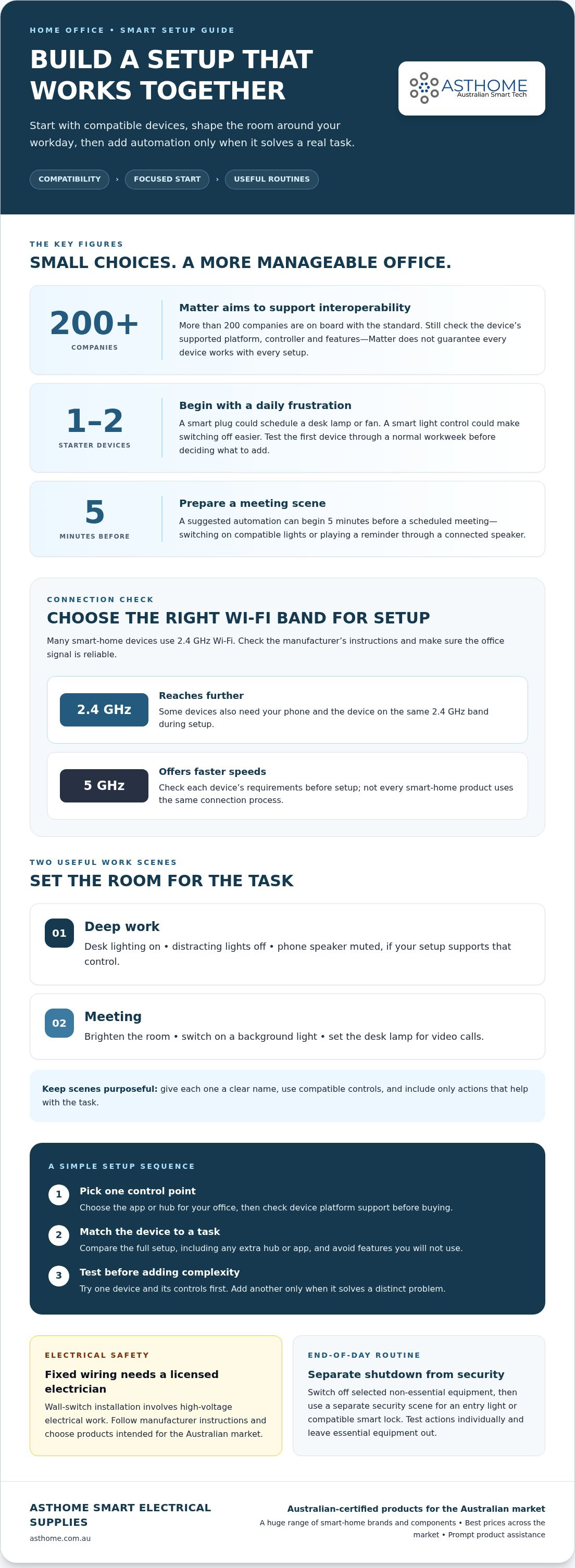
Compatibility starts with the platform, not the device’s smart label. Before buying, identify whether you’ll control your office through Apple Home, Google Home, another app or a hub. Then check each device’s listed platform support and communication standard. Matter is designed to support interoperability, with more than 200 companies on board with the standard. That doesn’t mean every Matter device works with every feature or controller, so match the device to your intended setup.
A hub can bring compatible devices together in one app. For a small office, choose one main app or hub, then add devices it supports. This keeps routines manageable and avoids splitting control across platforms. Give each device a distinct name, such as “desk lamp” or “office blind”, to prevent confusion in apps and voice assistants. Grouping devices, such as office lights, lets one command control them together.
If you use Apple HomeKit, check that each device specifically supports Apple Home before buying. Owning an iPhone or iPad doesn’t make a device compatible. Google users should likewise verify Google Home support. Home Assistant can bring supported devices into a central setup, but compatibility depends on the device and integration. Confirm platform and hub requirements, then add one device and test its controls before creating more complex routines.
Connection matters, too. Many smart-home devices use 2.4 GHz Wi-Fi, which reaches further than 5 GHz, while 5 GHz offers faster speeds. Some devices need your phone and the device on the same 2.4 GHz band during setup. Check the manufacturer’s instructions and connect the device where the office signal is reliable. A smart plug can add scheduling to a traditional lamp, but it still needs compatible platform support.
For an end-of-day routine, group office lights and non-essential smart plugs under a clear “workday finished” scene. Set it to switch off selected equipment, then create a separate security scene to turn on an entry light or set a compatible smart door lock to its locked state. Leave essential equipment out of the shutdown group. Test each action individually before relying on the routine.
Australian electrical safety requirements apply to smart devices. Follow the manufacturer’s instructions and choose products intended for the Australian market. Wall-switch installation involves high-voltage electrical work, so use a licensed electrician for fixed wiring.
For an Australian home office, choose climate controls to suit your heating or cooling system and the features you need. Smart thermostats can control heating and air conditioning remotely and may adjust temperatures by time of day, location or connected-device status. Check that a thermostat is compatible with your system before choosing one.
2. Budget-conscious starting points for small offices
Start with one or two devices that solve a daily frustration instead of automating the whole room. A smart plug can schedule a desk lamp or fan, while a smart light control can make switching off easier. Identify the task first, then compare devices that can handle it. This keeps your first purchase focused and gives you a useful test before expanding.
Before setting up, note your phone, voice assistants, Wi-Fi network and any existing hub. A device that works with your current ecosystem may be easier to integrate than one that needs a separate app or controller. Check platform support and setup requirements, then decide whether the controls fit your routine. Smart home solutions for home office setup can be introduced gradually, without automating every part of the room.
Plan around your work area, not every room in the home. For example, start with a desk lamp and schedule it to turn on before your usual work period. If manual switching is the problem, choose a control that addresses it instead. Begin with one simple automation, such as a scheduled action, so you can judge whether it improves your workspace.
Before buying, list the task, device type, required platform and any extra equipment. Factor setup effort into your decision. A device that relies on a separate hub may suit a broader plan, while a standalone option may be simpler for one office task. Compare the complete setup, not just the device, and avoid paying for features you won’t use. This makes it easier to compare smart home solutions for home office setup against your actual needs.
Once the first device is working, use it through a normal workweek. Notice whether the schedule fits, the controls are easy to reach and another device would solve a distinct problem. Add a device only when you can clearly explain its purpose. This measured approach keeps automation manageable and helps prevent unused gadgets piling up.
Keep expansion consistent. Reuse the same platform where practical, give each device a clear purpose and add routines only when they reduce repeated actions. If you’re comparing options for a small office, browse smart home components with your task and preferred ecosystem in mind.
3. Personalised scenes for meetings and deep work
Scenes make it easier to switch your home office between tasks. Build a “Deep work” scene around your preferences: desk lighting on, distracting lights off and a phone speaker muted if your setup supports that control. A separate “Meeting” scene could brighten the room, turn on a background light and set the desk lamp for video calls. Name each scene for its purpose so it’s easy to find in your home automation app.
For meetings, use a scheduled trigger to prepare the room before you join. A suggested meeting-room automation sequence begins 5 minutes before a scheduled meeting. For example, set the compatible lights to switch on and a connected speaker to play a reminder. Keep the actions relevant to the meeting, rather than adding a coffee machine or other device that doesn’t help you get ready.
Deep-work routines work best when they’re deliberate and easy to start. Set a scene you can activate through your platform, a voice assistant or a physical control. Choose actions that reduce interruptions, such as switching off a smart plug connected to a non-essential lamp elsewhere in the room. Beyond physical room settings, exploring AI and productivity tools through Arcyn Find can further support uninterrupted deep work. Keep equipment you need for work out of the routine, and use clear device names so the right action runs.
Triggers can be manual, scheduled or linked to an event from a supported device. A manual trigger gives you control when your day changes; a schedule suits recurring meetings. Before relying on an automatic routine, test each action separately. Check that the right light responds, the speaker plays the intended sound and the scene doesn’t affect equipment needed for another task.
Consider what happens if the internet or home network becomes unavailable. Some platform routines depend on a connection, while device behaviour varies by system. Keep a simple manual way to control essential lights and equipment. If a meeting scene fails, you should still be able to turn on the room lighting without troubleshooting several connected devices.
After using each scene during a normal workday, adjust one setting at a time. If the meeting scene looks too bright on camera, change its lighting action rather than rebuilding the routine. If a deep-work scene interrupts a machine you need, remove that device from the automation. Simple scenes are easier to test, understand and adapt as your office routine changes.
4. Smart lighting schedules and colour temperature
For an Australian home office, choose lights with adjustable brightness and colour temperature, along with controls that suit your preferred platform. You’ll have options for daytime tasks, video calls and softer evening lighting instead of relying on one fixed setting.
Start by observing the room at different points in your workday. Note when daylight reaches your desk, when glare appears on your screen and which areas remain dim. Then set a schedule around those conditions. A Melbourne-based freelance designer’s office lighting begins brightening at 8am, reaches peak brightness at 10am and gradually dims from 3pm. Treat this as an example to adapt, not a preset for every Australian home.
Use colour temperature to shape the room as your tasks change. A cooler-looking setting may suit focused daytime work, while a warmer setting can feel more comfortable later in the day. These are preferences, not a universal formula. Test options at your desk, since wall colour, window direction and screen position affect how the light looks.
Make the schedule useful, not fussy. Choose a few clear transitions, such as lights turning on at the start of work, a change before a recurring meeting and dimmer lighting later. If your routine changes, adjust the timing in the app rather than adding more commands. Check the schedule across a typical workday, then revise anything that switches too early or too late.
Connected devices can give you several ways to control lighting. A smart speaker may respond to voice commands, while an app may let you adjust lights remotely. Keep a physical switch accessible for straightforward manual control. Check how it works with the smart lighting so anyone entering the office or living area can operate the lights as expected.
Keep lighting automation manageable by grouping desk lights separately from the rest of the room. A meeting setting can then brighten the background without changing the desk lamp, or a deep-work routine can adjust only the work surface. Test each schedule and command individually. If a connected device goes offline, manual control should still be easy to find.
Review the setup under different working conditions. Compare a bright, overcast morning with a sunny afternoon, then adjust brightness or timing to suit the room. A schedule should support your work pattern, not dictate it. Keep controls simple enough to change if your working hours or desk position shifts.
5. What smart home devices are useful for a home office setup?
Choose devices for the job they do, not the number of features they advertise. Useful home-office categories include smart plugs, lighting controls, temperature and humidity sensors, motion sensors and curtain motors. Each can address a practical task, such as scheduling a lamp, monitoring room conditions or adjusting window coverings. Start with the issue that interrupts your work most often.
A smart plug can schedule a traditional lamp, fan or coffee maker without replacing the appliance. For example, set a desk lamp to turn on before your usual start time, or schedule a fan for a warm part of the day. Check that the appliance is suitable for the plug and that the setup works with your platform. Keep essential work equipment out of any routine that switches off power.
Temperature and humidity sensors can show how conditions change in your office. Use their readings to decide whether ventilation, heating or cooling needs attention. Smart thermostats can control heating and air conditioning remotely, and may adjust temperatures by time of day, location or connected-device status. Their usefulness depends on compatibility with your existing system and the controls you need.
An occupancy sensor can support an energy-saving routine by putting non-essential devices into standby after 15 minutes away. Keep computers, network equipment and other devices you need running outside that routine. Test the sensor from your desk and doorway, then adjust its placement if it misses movement or responds when the room is occupied.
Automated curtains can help manage daylight, glare and privacy during video calls. A practical routine might close the curtains when afternoon sun falls across your monitor, then reopen them when the glare passes. Consider how the window affects your screen and desk before choosing a trigger. Manual control remains useful when your schedule or lighting needs change.
A Brisbane software engineer’s smart desk had three height presets. This example shows how connected controls can support a desk routine, but the right device depends on your workspace and habits. Keep frequently used controls within easy reach, and avoid linking desk movement to unrelated room actions.
A voice-activated speaker paired with noise-cancelling technology may also suit a noisy workspace. An Adelaide content writer reported doubled afternoon productivity with that combination, but this is an individual experience, not a guaranteed result. Choose tools that address your actual distractions, such as household noise during calls.
Match each device to one clear task, then check platform compatibility and control options before adding it. A small setup might start with a scheduled lamp and a temperature sensor; an office affected by glare might benefit more from automated curtains. If you're looking for everyday gadgets and tech accessories, browsing online stores such as elite-finds-9427.myshopify.com can give you ideas for useful equipment. This keeps the system focused on work instead of adding connected devices without a purpose.
Asthome Smart Electrical Supplies: Matter Smart Switch Module
Asthome Smart Electrical Supplies offers a Matter Smart Switch Module for home offices where compatible lighting controls can support a more organised routine. Matter is designed to improve interoperability between supported smart-home devices, so match your platform and equipment to the setup you want.
Its range includes products from many smart-home brands, with the best prices across the market on smart-home products and components. Asthome focuses on supplying Australian-certified products that are safe for use on the Australian market. The customer service team provides prompt responses and product assistance.
Explore Asthome’s smart switches, modules and lighting products at asthome.com.au to find options for your home-office setup.
Make your next upgrade purposeful
Before adding another connected device, write down what you want your office to do differently. A clear goal, such as easier lighting control or a simpler workday routine, gives you a practical way to decide whether a new component belongs in your setup. Keep the plan flexible, too. Your work habits and room layout may change, so choose controls you can adjust.
For smart home solutions for a home office setup, the next step is matching your priorities with suitable components and compatible systems. Asthome Smart Electrical Supplies offers the Matter Smart Switch Module, Zigbee 3.0 Smart Switch Module and Smart Zigbee Dimmer Module as options to consider for lighting control. Review the product information against your intended setup before choosing.
Contact Asthome Smart Electrical Supplies to discuss smart home products for your office. A considered first upgrade can help make your workspace work better, one practical change at a time.
Frequently Asked Questions
Can smart home tech really improve work focus?
Yes. Smart technology can reduce small interruptions that break concentration, but it can’t replace good work habits. A scheduled light or fan can cut down on repeated manual adjustments, while a speaker reminder can prompt a screen break. Choose one routine that addresses a distraction you actually experience. Keep manual controls available so a change in task doesn’t leave you fighting the automation.
Is setting up a smart home office expensive?
Not necessarily. The total depends on the devices you choose, whether they need a hub and what equipment you already own. Start by listing one office task you want to simplify, then check whether your existing phone, app or hub can control a suitable device. This helps you avoid buying extra components before you know they’re needed. Expand the setup only when another device solves a separate problem.
Will my devices work together or clash?
Devices work together only when their communication standards, platforms and hub requirements are compatible. Check the device’s support details against your chosen controller, then confirm which features are available through that platform. Matter support can improve interoperability, but it doesn’t mean every device offers identical functions in every app. Check whether a device needs a separate gateway, too, as this affects your system plan.
Bluetooth, Wi-Fi, or Smart Hubs?
Choose the connection method that suits your devices and control needs. Wi-Fi devices connect through your home network, while Bluetooth devices rely on Bluetooth support in the controlling device or platform. Zigbee devices need a compatible gateway; Asthome Zigbee devices require a Tuya Zigbee Gateway. Some Wi-Fi products work without one. Check the specific device’s protocol and gateway requirements before buying.
How much do smart home office devices cost in Australia?
There’s no single cost for a home-office setup. Smart plugs, lighting controls, sensors and hubs are different product categories, and the total depends on the devices and extra components your chosen system needs. Compare the complete setup rather than one device in isolation. Existing compatible equipment may reduce what you need to add. For fixed electrical products, include installation work in your planning.
How can smart plugs and power boards improve a home office setup?
A smart plug can add scheduling to a suitable traditional appliance, such as a desk lamp, fan or coffee maker. A power board provides multiple outlets, but isn’t automatically smart; the control device must suit the appliances and their intended use. For example, schedule a lamp separately instead of switching off a board that also powers essential work equipment. Follow the product instructions and keep critical devices powered.
What Wi-Fi requirements and smart home protocols should I consider for a home office?
Check the device’s Wi-Fi band, platform support and setup requirements before connecting it. Many smart-home devices use 2.4 GHz Wi-Fi, and setup may require your phone and device to use that same band. Matter and Zigbee are other protocols to consider; Zigbee devices need a compatible gateway. If you use Home Assistant, confirm that the device has a suitable integration for the controls you need.
How can I secure smart home devices and protect privacy in a home office?
Use a unique password for each account and enable two-factor authentication where available. Review app permissions, especially for devices with microphones or cameras, and disable access you don’t need. Keep your home Wi-Fi password private, and review device and platform privacy settings before linking accounts. In a shared workspace, consider which household members can control office devices and remove access when it’s no longer needed.