

A Zigbee device that won’t pair isn’t necessarily faulty. Common causes include pairing mode, compatibility, power and signal strength. If you’re troubleshooting zigbee device not pairing, start with the basics before resetting everything. Repeated resets can erase settings without addressing the problem, making it harder to identify the cause.
It’s frustrating when pairing mode times out or your device doesn’t appear in the app. The hub matters too: most Zigbee devices need a compatible Zigbee gateway to join your smart-home network, rather than connecting directly to your Wi-Fi router. A clear sequence of checks can help you work out whether the issue is with the device, gateway, app or signal.
This guide covers practical checks, from confirming power and compatibility to testing the connection, while helping you avoid unnecessary resets. You’ll also learn what to consider if you need replacement hardware. Asthome Smart Electrical Supplies offers a broad range of smart-home brands and components, with SAA-certified products for the Australian market. If you’re choosing a Zigbee switch module, dimmer, sensor or gateway, match it to your existing setup. Asthome’s team can also provide responsive product assistance.
Key Takeaways
- Separate a device that fails to join during setup from one that joins but later drops offline. The symptoms point to different checks.
- For troubleshooting zigbee device not pairing, compare the device’s exact model or type with your gateway’s supported-device information before repeating setup.
- Use symptoms such as intermittent connection or no response to guide checks for power, distance and possible radio interference.
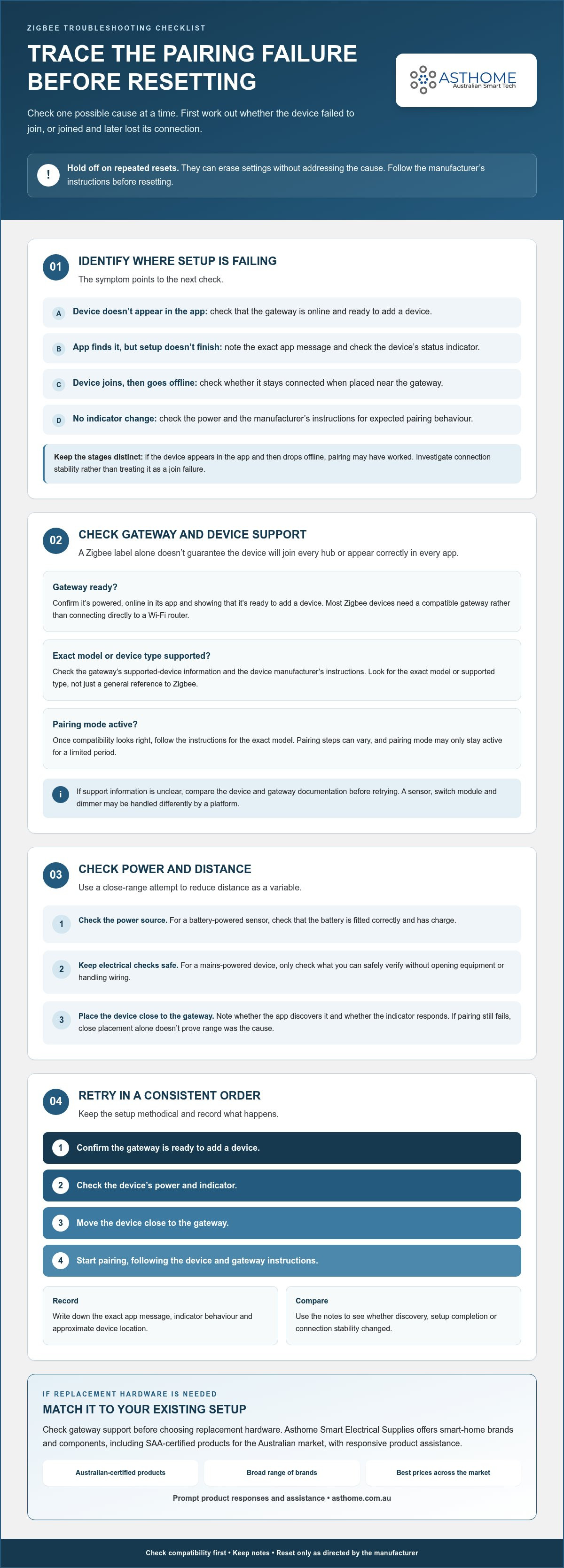
- Retry in a consistent order: confirm the gateway is ready, check power, move the device closer, then start pairing. Follow the manufacturer’s instructions before resetting.
- Record what works and check compatibility before adding hardware. If replacing an electrical device, consider SAA-certified options from Asthome’s smart-home range.
Zigbee device not pairing? Identify where the setup is failing
Work through one possible cause at a time before assuming the device is faulty. A failed setup can mean the device never joined the network, or that it joined successfully and later lost its connection. These are different stages, so first identify which one you’re seeing.
Pairing is the process of adding a device to a Zigbee network managed by a coordinator, usually built into a hub or gateway. The coordinator manages the network; your app provides setup controls and reports what happens. For background on Zigbee and its mesh-network structure, see this Zigbee technology overview.
- Device doesn’t appear in the app: check that the gateway is online and ready to add a device.
- App finds the device but setup doesn’t finish: note the exact message and check the device’s status indicator.
- Device joins, then goes offline: check whether it stays connected when placed near the gateway.
- No indicator change during setup: check the device’s power and the manufacturer’s instructions for expected pairing behaviour.
What does “pairing failed” actually mean?
The wording in an app can be broad. “Not found” or no device entry may mean discovery didn’t complete. A message about incomplete setup may mean the app detected the device but didn’t finish adding it. If the device appears in the app and then drops offline, pairing may have worked. The next issue to investigate is connection stability, not joining the network.
Before trying again, write down the exact app message and note whether the device’s indicator changes, flashes or stays the same. These details give you a baseline for comparison. Avoid resetting immediately: a reset can erase a working configuration, and the correct procedure differs between devices. Record the message, indicator behaviour and approximate location together.
Check the basics before changing settings
Start with the gateway. Confirm it’s powered, online in its app and showing that it’s ready to add a device. If it’s offline or not in its add-device process, it can’t complete the join, even if the Zigbee device is in pairing mode.
Next, check the device’s power source and indicator. For a battery-powered sensor, make sure the battery is fitted correctly and has charge. For a mains-powered device, only check what you can safely verify without opening equipment or handling wiring. If power is uncertain, don’t treat a missing indicator as proof that pairing has failed.
For an initial diagnostic attempt, place the device close to the gateway. This helps reduce distance as a variable, although it doesn’t prove range is the cause if pairing still fails. Keep the device and gateway in their current configuration, then note whether the app discovers the device and whether its indicator responds. This simple record makes troubleshooting zigbee device not pairing more methodical and helps separate setup problems from later dropouts.
Check Zigbee compatibility, gateway support, and pairing mode
A Zigbee label alone doesn’t guarantee that a device will join every hub or appear correctly in every app. Most Zigbee devices still need a compatible hub, coordinator or gateway, and support can depend on the gateway’s software and the device types it recognises. Treat compatibility and pairing mode as separate checks: first establish whether the system supports the device, then confirm it’s ready to join.
The Connectivity Standards Alliance (CSA) for Zigbee standards maintains information about the Zigbee standard, but that doesn’t replace checking the documentation for your specific hub and device. Two devices can both use Zigbee yet differ in the functions or device types a particular platform supports. A general Zigbee claim isn’t enough to establish practical compatibility.
Does your Zigbee device work with this hub?
Check the gateway’s supported-device information and the device manufacturer’s instructions. Look for the exact model or supported device type, not just a general reference to Zigbee. Then check whether the coordinator software is current and whether the platform documents support for the device’s functions. This helps distinguish a support gap from a device that simply hasn’t entered pairing mode.
- Model or type appears as supported: continue to the pairing-mode check.
- Support information is unclear: compare the device and gateway documentation before retrying.
- Device is listed but setup still fails: check pairing mode and software support rather than assuming the hardware is faulty.
Compatibility can also depend on the device’s role and features. A sensor, switch module and dimmer may be handled differently by a platform, even if each uses Zigbee. For a related example of one device category, see this Zigbee 3.0 smart switch module guide. Check gateway support before choosing replacement hardware.
Is the device actually in pairing mode?
Once compatibility looks right, follow the manufacturer’s instructions for the exact model to enter pairing mode. The steps can vary, and pairing mode may only stay active for a limited period. Start the gateway’s add-device process at the point specified in its instructions, then activate pairing as directed. Don’t rely on a button sequence used for another model.
Pairing mode and factory reset aren’t interchangeable. Pairing mode makes a device available to join a network. A factory reset can clear its existing settings or network information. Resetting unnecessarily may create extra setup work, so use that step only when the manufacturer’s guidance calls for it. If the device was previously paired to another network, check its instructions for the correct way to prepare it for joining again.
If you’re replacing a switch module or gateway, Asthome’s range includes Zigbee smart-home hardware, with SAA-certified products for the Australian market. Browse Australian-market Zigbee hardware with your gateway requirements in mind.
Trace failed Zigbee pairing to power, range, or interference
If compatibility and pairing mode look right, check the conditions around the device. Power interruptions, distance from the coordinator or local radio conditions may affect a pairing attempt. These are possibilities to test, not proof of a single cause. Change one factor at a time and note whether the result changes.
Use the symptoms below to choose a sensible first check:
| What you notice | First check |
|---|---|
| No status light or expected indicator response | Check the battery or power source against the device instructions. |
| Pairing works near the coordinator but not in the intended location | Compare the locations and consider walls, placement and nearby wireless equipment. |
| Pairing remains inconsistent in different locations | Recheck power and pairing instructions, then consider whether radio conditions may be contributing. |
Could power or battery condition be stopping the join?
A battery-powered sensor may not respond as expected if its battery is flat, poorly seated or installed in the wrong orientation. Check the manufacturer’s instructions for the correct battery type and fitting. If the device has a status indicator, compare what you see with the behaviour described in its guide. Rule out a simple power issue before assuming the device is defective.
For a mains-powered device, don’t open the enclosure, handle wiring or attempt a repair. If you suspect a wiring or electrical fault, stop and have the work assessed by a licensed electrician. Limit troubleshooting to checks that can be done safely from the outside, such as noting whether the device shows signs of power.
Could distance or radio conditions be interrupting pairing?
Try pairing with the device close to the coordinator, then compare the result with a test at its original location. Moving a device closer is a useful diagnostic test, not proof that the network is faulty. If it joins nearby but struggles in place, distance or the local radio environment could be involved. If it still doesn’t join nearby, return to the power, compatibility and pairing-mode checks rather than assuming range is the cause.
Walls and device positioning can affect radio conditions. Nearby wireless equipment may also contribute to interference, though a failed join alone can’t identify the source. Keep your test consistent: change the location first, then try adjusting placement or moving the device away from nearby equipment. Avoid changing several things at once, or you won’t know which adjustment made a difference.
Placement matters for sensors, too. A motion sensor positioned behind an obstruction may have a different connection path from one placed in an open area. The motion sensor guide for Australian smart homes offers related placement context. Comparing locations can make troubleshooting zigbee device not pairing more targeted and help distinguish a power issue from a possible radio-condition problem.
Follow a safe sequence to retry Zigbee pairing
Use a controlled retry rather than resetting the whole smart-home setup. Work through the checks in order and change one condition at a time. That way, if the device joins, you’ll know what helped. If a step points to a possible electrical fault, stop and leave inspection or wiring work to a licensed electrician.
- Confirm the gateway is ready. Check that it’s online and that its app or controls show the add-device process is active. Follow the current instructions for your gateway, as menus and pairing terms can vary between platforms.
- Check the device’s power. For a battery device, check that the battery is fitted correctly and follow the manufacturer’s guidance on its condition. Don’t open or modify electrical equipment. If a mains-powered device appears to have a wiring or electrical issue, stop and seek help from a licensed electrician.
- Move the device closer. Place it near the coordinator for this attempt, keeping the setup otherwise unchanged. This helps test whether location could be affecting the join.
- Start pairing in the right order. Use the gateway’s add-device process and activate pairing mode on the exact device model as its manufacturer instructs. Watch for the expected indicator response and note what the app reports.
Retry without resetting the whole smart-home setup
Begin with the device-specific pairing procedure and the hub’s add-device process. Don’t reset the gateway or remove other devices as an early step; those changes can disrupt a working setup without resolving the cause. A factory reset may clear device settings or mean you need to configure it again. Reset only when the manufacturer’s instructions recommend it, and follow that exact procedure rather than guessing a button sequence.
After each attempt, change just one condition. For example, if the device doesn’t join near the gateway, keep its position and power state the same for the next attempt while rechecking the manufacturer’s pairing instructions. Avoid changing location, resetting the device and restarting the gateway all at once. A consistent process makes the outcome more useful and helps you track what changed.
Record results and know when to escalate
Keep a brief record of the device model, gateway, app message, indicator behaviour and steps already tried. If the instructions or menus don’t match what you see, consult current guidance from the device manufacturer or platform. This gives you a clear account of the issue and helps avoid repeating steps unnecessarily.
Stop troubleshooting if you notice signs of an electrical problem, such as suspected wiring damage or unreliable mains power. Don’t open, rewire or modify the device; leave electrical inspection and repairs to a licensed electrician. For replacement Zigbee hardware, Asthome supplies SAA-certified products for the Australian market. Explore its Zigbee devices and gateway range to compare options for your setup.
Prevent repeat pairing issues and choose Australian-market Zigbee hardware
A successful pairing is useful information. Record what worked so you can repeat the setup and make better decisions before adding another device. Note the device model, gateway, app or platform, the location used during pairing and any steps that made a difference. Keep the device instructions with those notes, especially if they explain pairing mode or reset behaviour.
- Save the working setup: record which gateway and platform support the device, plus any settings you changed.
- Keep the instructions: store the device guide where you can find its model-specific setup steps later.
- Check before expanding: compare gateway support and device requirements before adding a new item to the Zigbee network.
This simple record can make troubleshooting zigbee device not pairing less of a guessing game next time. It also helps you distinguish a new compatibility issue from a setup that has changed since the device last worked.
What to consider before replacing a device or gateway
Start with the job the hardware needs to do. A switch module controls switching, a dimmer supports dimming, and a sensor serves a monitoring or detection role. Then match the device to the gateway and ecosystem you intend to use. Check the supported-device information and relevant instructions before choosing a replacement; sharing a Zigbee label doesn’t confirm that every device and gateway combination will work together.
Australian-market certification is also an important consideration for electrical smart-home hardware. Asthome’s products are SAA certified for the Australian market. Certification and compatibility address different needs: certification doesn’t establish that a product will pair with your particular hub, so check both the product information and gateway support.
Get practical product help from Asthome
Asthome offers a broad range of smart-home brands and components. Its Zigbee gateway hubs, switch modules, dimmers and sensors give you relevant categories to compare against your setup and intended use. Asthome also provides product assistance, with responsive customer service as you consider your options.
Replacing a device doesn’t always mean replacing the gateway as well. Use your setup notes to identify what needs to remain compatible, then compare suitable hardware with those requirements in mind. This helps avoid repeating the same pairing frustration with a new device.
Ready to compare options? Browse Asthome’s smart-home range for Zigbee devices and other smart-home components, with Australian-market certification an important consideration for electrical products.
Make your next smart-home change with confidence
A pairing problem can be a useful prompt to plan your next smart-home change carefully. Before adding or replacing hardware, think about how the device will fit into your wider setup and what you want it to do. A little planning can help you avoid guesswork later, especially as you add devices over time.
Keep troubleshooting zigbee device not pairing methodical: use what you’ve learned from each attempt to guide the next decision, rather than treating every failed join as a reason to start over. If replacement hardware is the right next step, compare options with your gateway and intended use in mind. Asthome supplies SAA-certified products for the Australian market and offers responsive product assistance as you consider your choices.
Browse Asthome’s smart-home products and get helpful product assistance. Choose your next device with a clear plan, and you’ll be better placed to build a setup that works for your home.
Frequently Asked Questions
Can a Zigbee device pair without an internet connection?
Often, yes. Zigbee pairing is between a device and its local coordinator, so an internet connection isn’t inherently required for the radio connection itself. However, some hubs or apps rely on cloud services for setup, account access or device control. If pairing won’t start while your internet is down, check whether the hub is still online on your home network and whether its manufacturer requires an internet connection for commissioning.
Do all Zigbee 3.0 devices work with every Zigbee hub?
No. Zigbee 3.0 doesn’t guarantee that every hub will support every device or expose all its features. A device might join but have limited functionality, such as a sensor reporting basic events while a specialised feature isn’t recognised. Check the hub’s compatibility information for the specific model and the functions you need, not just the Zigbee version. This matters especially when combining equipment from different brands.
Should I factory-reset a Zigbee device if it will not pair?
Not as your first move. A reset may clear network details or other device settings, and it won’t solve an unsupported device or an unavailable hub. First check whether the device was previously connected to another coordinator, since it may need the manufacturer’s specified procedure before joining a new network. If a reset is recommended, follow the exact instructions for that model and be prepared to set it up again.
Can a Zigbee device be too far from its hub to pair?
Yes. Distance or the surrounding radio conditions can prevent a reliable join, but there isn’t one fixed range that applies to every home and device. For troubleshooting zigbee device not pairing, compare a pairing attempt near the hub with one in the intended location. If it only works nearby, the path through the home may be affecting the connection. Walls, placement and nearby wireless equipment can all be relevant.
Why does my Zigbee device pair and then go offline?
A device that joins and later drops offline has a connection-stability issue, which is different from failing to join in the first place. Check whether it loses power, whether the problem occurs at a particular location, and whether other Zigbee devices remain connected. Battery-powered devices may also communicate differently from mains-powered devices. Note when the dropout happens and any changes to the network, then use the device and hub guidance to narrow down the cause.
Can I troubleshoot a mains-powered Zigbee switch myself?
You can make safe external checks, such as noting whether the switch responds in the app or shows its expected indicator behaviour. Don’t open the switch, handle wiring or attempt to modify it. If you suspect a wiring fault, inconsistent mains power or damage, stop and have the electrical work assessed by a licensed electrician. Keep product and app troubleshooting separate from electrical inspection so you don’t put yourself at risk.