

What if your Zigbee device is slow because of a weak mesh link, not radio interference? When lights respond late or sensors drop offline, interference is an easy suspect. But changing channels or replacing hardware without testing can make the problem harder to diagnose. This zigbee interference troubleshooting guide helps you distinguish likely radio disruption from range and setup issues.
It’s frustrating when automations work one moment and stall the next. Wi-Fi congestion, nearby electronics and the position of your coordinator can all affect performance. Devices far from the hub may point to a weak mesh instead. Because the symptoms can look similar, a methodical check is more useful than guesswork.
Here, you’ll learn how to spot patterns, test one change at a time and decide whether to adjust placement or channels, strengthen the mesh, or investigate a device or coordinator issue. Asthome supplies Zigbee 3.0 modules and gateway hubs, and its products are SAA certified for the Australian market. Certification is important when choosing electrical products, but it won’t resolve radio interference.
Key Takeaways
- Slow responses and dropouts are clues, not proof of radio interference. Look for patterns before changing settings.
- Compare which devices and locations are affected, when issues occur and whether repositioning changes performance.
- Use this zigbee interference troubleshooting guide to test one adjustment at a time and track its effect on reliability.
- Check device radio details and nearby 2.4 GHz transmitters before making channel changes.
- If tests point to hardware, compare device and gateway compatibility before replacing equipment.
Zigbee interference symptoms: what to check before changing settings
Intermittent responses, delayed commands and devices that become temporarily unreachable can all signal trouble in a Zigbee setup. They don’t prove radio interference is the cause. Interference is unwanted radio energy that disrupts communication on the same or a nearby frequency. Zigbee shares radio space with other technologies, as outlined in the Zigbee Wikipedia article, but similar symptoms can come from the mesh, power or an individual device. Start with observations, not setting changes.
Before adjusting a channel or re-pairing equipment, record what happens. A short log makes patterns easier to spot and gives you a baseline for comparison.
- Device: note which sensor, switch or other device is affected.
- Location: record its room and approximate position in relation to the hub.
- Time: note when the fault starts and whether it happens at a similar time on other days.
- Command: describe what you tried and whether it was delayed, missed or only partly completed.
- Repeat: note whether the same fault returns and whether a temporary move changes the response.
Which Zigbee problems can point to radio interference?
Look for repeatable patterns. A device that fails mainly in one location, or several nearby devices that become unreliable during the same time window, may be affected by a local radio condition. For example, note whether a sensor’s missed reports coincide with nearby wireless equipment being active. That is a useful clue, not proof: the timing could be coincidental, and a shared failure can have another cause.
If it’s safe and practical, temporarily reposition a battery-powered device or the coordinator, then repeat the same command or test. A changed result helps show whether placement matters. Don’t move or handle installed electrical devices to test this. Record the pattern and leave wiring untouched.
What else can look like Zigbee interference?
A weak signal path often affects devices that are consistently far from the hub or separated by walls and other obstacles. Mesh routing can also change as devices join, leave or lose power, so a problem may appear after a route shifts. A power interruption to the hub or a mains-powered Zigbee device can create dropouts that resemble radio disruption. Check whether other devices on the same power supply or circuit show a similar interruption.
If only one device keeps failing while nearby devices work normally, consider a device-specific fault, battery issue or compatibility problem. For context on one device category, Asthome’s Zigbee 3.0 smart switch modules are designed for Zigbee setups. However, a compatible device alone can’t identify the cause of a fault. Use your log to distinguish one-device symptoms from wider patterns before changing network settings.
How Zigbee shares the 2.4 GHz band with Wi-Fi and other devices
Many Zigbee devices communicate in the 2.4 GHz ISM band, the same broad band used by Wi-Fi and Bluetooth. Common Zigbee operation in this band is based on IEEE 802.15.4. Radio details can vary by product, so check the device specifications or manual rather than assuming every Zigbee device uses the same band or channel.
Sharing spectrum can make communication less reliable when nearby transmissions compete for radio time or add noise, but it doesn’t mean every device will interfere with every other device. Wi-Fi is one potential contributor, not the only one. The Microsoft Research analysis of Zigbee and Wi-Fi interference examines how Wi-Fi activity can affect low-power Zigbee networks. The effect in your home depends on factors such as device placement, channel use and how often nearby equipment transmits.
What do Zigbee channels and Wi-Fi channels mean?
Channels are slices of radio spectrum. Zigbee’s 2.4 GHz channels are relatively narrow, while a Wi-Fi channel occupies a broader portion of the band. Wi-Fi channels 1, 6 and 11 can overlap multiple Zigbee channels, although the amount of overlap varies. A channel is not a guaranteed interference-free lane.
Illustrative only, not to scale:
Wi-Fi: [ broad channel ] [ broad channel ]
Zigbee: | | | | | | | | | | | | | | | |
Each bar represents a channel; adjacent or overlapping spectrum may be shared by different transmissions.
Use this as a concept, not a channel-selection chart. Exact channel positions and device support matter, so check your hub and device documentation before changing settings. Channel planning should follow observed symptoms and a controlled test, not guesswork.
Which household devices are worth checking nearby?
Start with equipment close to the coordinator or affected devices. Note Wi-Fi access points, Bluetooth devices and other active wireless equipment, especially if they sit beside a Zigbee hub or sensor. A microwave oven can also be a possible intermittent source in the 2.4 GHz band, but its presence alone doesn’t establish the cause.
Test rather than assume. Compare device behaviour while nearby equipment is in normal use and, where practical, during a brief period when it is inactive. Change only one condition at a time and record the result. Smart lighting components also share space with home wireless equipment, so the overview of smart light switches for Australian homes provides related context when reviewing your setup.
If you’re comparing Zigbee lighting components, Asthome offers Zigbee products alongside electrical products certified for the Australian market. SAA certification relates to product safety, not immunity from radio interference. You can explore Asthome’s smart-home range while keeping compatibility and setup at the centre of your checks.
Interference or a Zigbee mesh fault? Compare the clues
Several different faults can produce the same symptom: a missed command or an offline device. Compare the pattern before settling on a cause. The clues below help narrow the possibilities, but none can confirm interference or a hardware fault on its own.
| Possible cause | Where and how many devices? | Timing and repositioning clues |
|---|---|---|
| Likely RF interference | Often clustered near a suspected source or in one area; multiple nearby devices may be affected. | Faults may recur during a particular activity or time window. A temporary move away from the suspected source may change the result. |
| Weak mesh coverage | More likely at the edge of coverage, such as a distant room or a location separated from the hub by obstacles. | Failures may be fairly consistent rather than tied to a particular time. A temporary move closer to the hub may improve the response. |
| Coordinator or hub issue | Several or many devices may become unresponsive, including devices in different areas. | Check whether the hub has lost power, restarted or become unavailable. A hub interruption is a separate possibility, not evidence of RF interference. |
| Device-specific fault | One device may fail while nearby Zigbee devices continue to respond normally. | The problem may follow that device when it is temporarily repositioned. Check its power or battery and note whether the fault repeats. |
Clues that make radio interference more plausible
Repeated timing is more useful than a single dropout. Record whether the same devices fail during a consistent window, or whether problems cluster near a particular source of wireless activity. If several devices in the same area show similar symptoms, note that shared pattern. It raises the possibility of a local RF issue, but other shared conditions could also explain it.
Before changing channel settings, look for a repeatable result. Temporarily move a battery-powered device or coordinator, where practical, and compare the same command under similar conditions. If the change helps once but not on later tests, treat the finding cautiously. Use the test to check a hypothesis, rather than treating one coincidence as a diagnosis.
Clues that point to coverage, coordinator or device issues
Failures that regularly affect devices far from the hub, especially across walls or other obstacles, make coverage worth investigating. Keep the check simple: compare an affected device with one in a nearer location, without changing multiple settings at once. A fault that stays with one device while nearby devices work normally points more towards that device, its power or its compatibility than a whole-network radio problem.
If devices across different rooms drop out together, check the coordinator or gateway’s power and connection before focusing on radio conditions. Note any restart or interruption and compare its timing with the dropouts. These distinctions help decide what to test next, while leaving the cause open until the pattern is consistent.
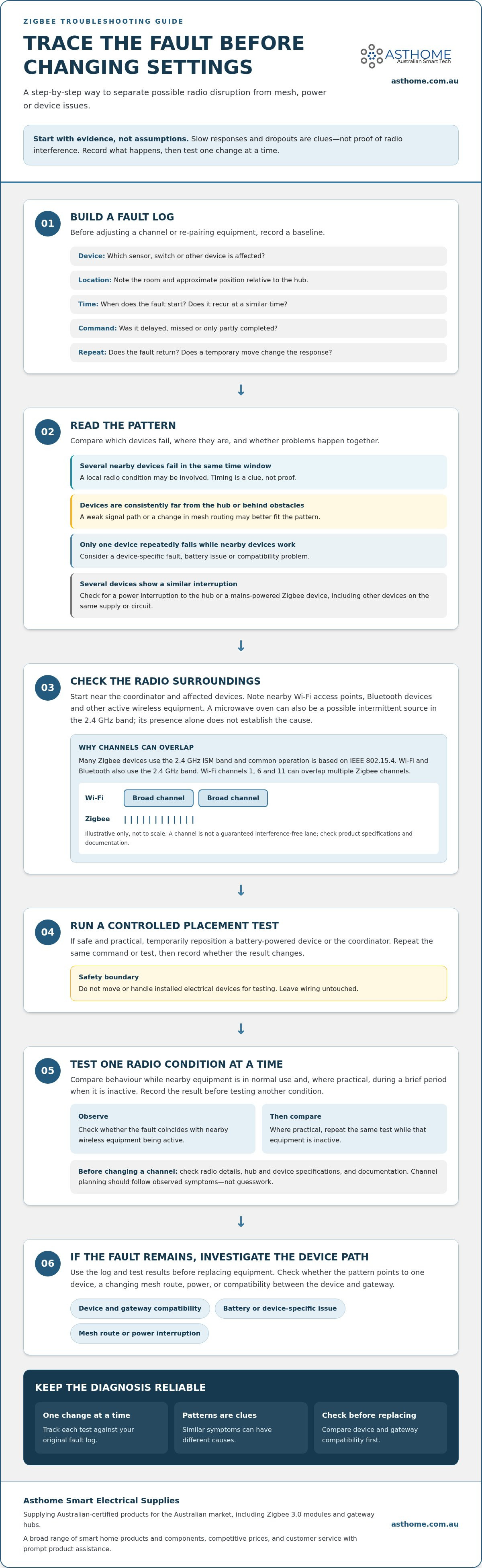
A safe, step-by-step Zigbee interference troubleshooting process
Keep the test controlled. The aim is to find out whether one change affects reliability, not to alter several settings and lose track of what helped. Follow a simple sequence: document the fault, inspect the setup, change one condition, observe, then compare.
- Record the baseline. Note the affected devices, their locations, the commands tested and when problems occur. Use the same devices and commands throughout the test.
- Inspect placement. Check whether the hub or coordinator is tucked behind equipment, close to a Wi-Fi access point or surrounded by electronics. Look for obvious changes to the setup since the issue began.
- Choose one test. Temporarily reposition the hub or a nearby wireless device where practical. Don’t move or handle installed electrical equipment.
- Observe the result. Repeat the original commands from the same locations. Record whether responses improve, worsen or stay much the same.
- Compare before and after. If the result is unclear, return to the original arrangement and repeat the test under similar conditions before trying another adjustment.
Run a controlled test without disrupting the whole network
Before adjusting anything, capture a baseline: run the same commands on the same devices from the same locations, and note delays or missed responses. Then make one temporary placement change, such as moving the coordinator away from nearby wireless equipment. Avoid changing Wi-Fi settings or moving several devices at once. Repeat the baseline checks and log the result. A consistent difference is more useful than a one-off improvement.
Choose a test that won’t interrupt essential home functions. If moving equipment would require unplugging something important or accessing wiring, skip that test. The goal is a safe comparison, not a risky workaround.
When and how to test a Zigbee channel change
A channel change is a network-level adjustment, so don’t treat it as a quick first step. Check the hub manufacturer’s instructions for the correct process, which devices may be affected and whether any need to rejoin. Confirm device compatibility and understand how to restore the original setting before proceeding. Keep a record of the current channel if the hub displays it.
Make the change only after simpler placement checks, then repeat your baseline tests. Allow the system to settle as directed by the hub maker, and record device responses and any reconnection prompts. If the documented symptoms don’t improve, revert using the manufacturer’s procedure rather than stacking on more changes. Never open, rewire or modify mains-powered equipment. In Australia, electrical work should be handled by a licensed professional.
If you’re comparing Zigbee hubs or devices for your setup, explore Asthome’s Australian-market smart-home products. Asthome’s products are SAA certified, and its team provides product assistance to help you compare compatibility and understand relevant product information.
Choosing Zigbee equipment and support after troubleshooting
Don’t replace hardware just because a device has dropped offline. If a placement or configuration test changes the symptoms, keep investigating that path before buying anything. Replacement may make sense when a device repeatedly fails while others nearby work, or when its features or compatibility don’t suit your system.
Before choosing a replacement, compare the device’s role with your existing setup. A sensor, dimmer, switch module and gateway hub serve different purposes. Check the device documentation and hub guidance for compatibility, pairing requirements and supported functions. Also consider the device’s location and radio path: a compatible product may still struggle in a poor position.
What to consider before replacing Zigbee devices
Asthome offers Zigbee 3.0 smart switch modules, dimmers, sensors and gateway hubs. Match the product category to the job, then compare compatibility with your existing hub and setup instructions. If one device continues to fail across repeatable tests while nearby devices remain reliable, Asthome’s product assistance can help you assess the relevant device details before deciding on a replacement. No product category guarantees a fix for radio interference.
Australian product safety and getting useful assistance
When comparing electrical products, consider safety suitability separately from Zigbee compatibility and radio performance. These checks address different needs, and neither should be treated as proof that a device will resolve wireless problems.
For useful product assistance, have the hub or coordinator model, device category and your test results on hand. Asthome offers prompt customer service and product assistance to help you compare compatible smart-home hardware and understand relevant product information.
If your findings point to a faulty or unsuitable device, explore Asthome’s smart-home products and get product assistance. Choose your next component based on the evidence you’ve gathered, not guesswork.
Make your next Zigbee change with confidence
Keep your test notes as a reference for future changes. If you add a device or move your hub later, you’ll have a clearer picture of how the network behaved before the change. That makes it easier to spot whether a new issue follows a particular location, device or setup adjustment.
A measured approach beats replacing hardware on a hunch. Use the evidence you’ve collected to decide whether to keep testing placement and configuration, check compatibility, or consider a device replacement. This guide is most useful when it helps you make one informed change at a time.
If your findings point to a new or replacement device, compare its role with your existing setup before choosing. Explore Asthome’s Zigbee and smart-home products, with a broad range of brands and competitive prices across smart-home products and components. With a clear record and a compatible choice, you can move towards a setup that’s easier to understand and manage.
Frequently Asked Questions
Can Wi-Fi interfere with Zigbee devices?
Yes, Wi-Fi can affect Zigbee devices that use the 2.4 GHz band, particularly if wireless equipment is close to the Zigbee coordinator. It isn’t the only possible cause, and the impact depends on the equipment and setup. Check the radio specifications for your specific devices. If problems seem to coincide with heavy Wi-Fi use, compare behaviour at different times before changing network settings.
How do I know if Zigbee interference is causing devices to drop offline?
You can’t confirm interference from an offline alert alone. Check the hub’s event history, if available, to see whether devices reported communication problems or whether the hub itself restarted or lost connection. Compare the alert with what happens when you send a command. Repeated observations are more useful than one unexplained dropout.
Can I change my Zigbee channel to reduce interference?
Possibly, if testing indicates that channel overlap may be contributing to the issue. First check your hub’s instructions and record its current channel and settings. Some devices may need to reconnect after a network channel change, so check the hub’s guidance before proceeding. If the hub doesn’t let you select a channel, don’t try to change it through unsupported methods.
Do microwaves interfere with Zigbee?
A microwave oven can be a possible source of intermittent disruption for Zigbee devices using the 2.4 GHz band, but its presence doesn’t prove it’s responsible. If dropouts seem to happen during normal microwave use, compare device behaviour before, during and after that period. Keep the test observational: don’t open or modify the oven, and avoid changing other wireless equipment at the same time.
Why does only one Zigbee device keep disconnecting?
A recurring fault on one device may point to its battery or power supply, pairing state, compatibility or a device fault rather than a network-wide issue. Check the device’s status in the hub app and follow its maker’s instructions for battery checks, updates or reconnection. If it uses a replaceable battery, compare its reported level with the recommended operating guidance for that model.
Will adding a Zigbee router fix interference?
Not necessarily. A compatible mains-powered Zigbee device that supports routing can extend the mesh and may help if the problem is a weak connection between a device and the hub. It won’t necessarily resolve radio interference near the coordinator or device. Check that the router is supported by your hub, and assess whether the issue relates to coverage before adding equipment.
Is it safe to troubleshoot a mains-powered Zigbee switch myself?
Limit DIY checks to app settings and other steps described in the device instructions. Don’t remove the switch plate, handle wiring or open the device to investigate a connection. If checking or changing the switch involves electrical work, leave it to a licensed electrician. For an Australian-market device, certification relates to product safety, not whether it’s safe to work on its wiring yourself.